
Walkthrough
Walkthrough: Session feedback that feeds the leaderboard
A read-only walkthrough, not an interactive demo. In the product: session feedback stays locked while the session runs and unlocks the minute it ends, and submitting earns points on the leaderboard. Scrub the demo clock past the session end, answer a short form and watch the organiser response count and average rating move. It uses sample sessions and sample responses.
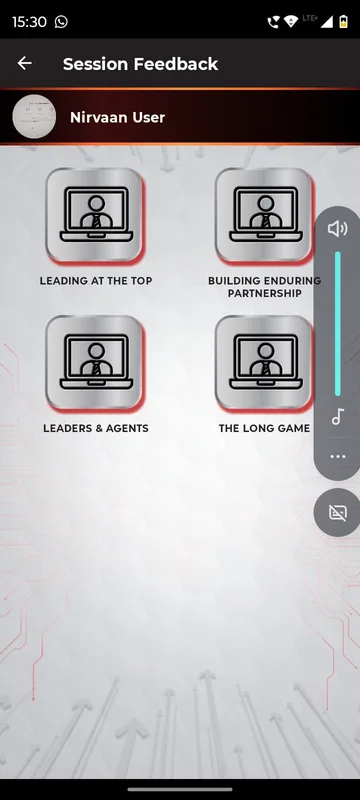
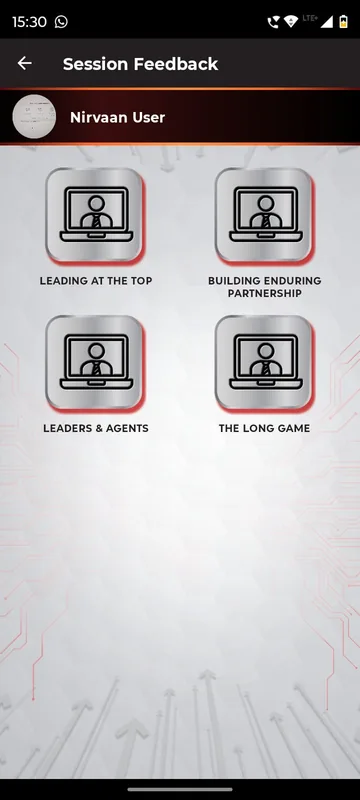
A walkthrough, not a live demo. Nothing on this page is interactive. Sample sessions and sample responses; nothing is stored. Free-text analysis is not shown. The unlock time is controlled by a demo clock, not the real time.
Step by step
- Find the locked card. Me shows Session Feedback with its lock message while a session is running.
- Scrub the clock. Move the demo clock past the session end and the card unlocks.
- Answer and submit. Pick an option, type an answer and choose a date and time, then Submit.
- Read the organiser tiles. Response count and average rating update; export is one click.
What happens on each screen
This is a written walkthrough, not an interactive demo: there is nothing to tap on this page. It describes how the screens behave in the product, using sample data.
Sample data: the sessions of a fictional two-day annual meet, a three-question feedback form and 31 sample responses. Nothing you enter is stored. Start on the attendee phone, on the Me tab. The Session Feedback card is locked, and its text reads Feedback forms unlock after each session. Rate sessions as you attend them. This is deliberate: people rate what they have just sat through, not what they expect to. Below the phone is a small clock with a scrubber. Drag it past the end time of the morning keynote. The card unlocks, and a short list of sessions you can rate appears. Choose the keynote. The form has the three question types organisers use most: pick an option, type an answer, and choose a date and time. Fill them in and tap Submit; Cancel leaves without saving. A thank-you message appears with a toast awarding 10 points, which also shows on the leaderboard tab, so feedback is part of the same points total as polls and attendance. There is a second state worth seeing. If an organiser has not switched feedback on for a session, the tile says the feature is not active yet and tells you to stay tuned, instead of showing an empty form. Switch to the organiser pane. Two tiles, response count and average rating, update as you submit, and the sample responses keep arriving. A table lists which sessions have feedback switched on, and each can be toggled. Export CSV downloads the responses so that they can go into the post-event report. The demo does not show free-text sentiment analysis, because that is not part of what we document. Next step: open the feedback forms feature page, or ask us to share the setup used for the GCOO conclave, and book a 20-minute walkthrough.
Questions people ask
Why is the feedback card locked during a session?
Sociana can hold the form until a session ends so that people rate what they attended. The demo shows the locked message and lets you scrub a clock to see it unlock.
Do attendees earn points for feedback?
In the demo, yes: submitting gives 10 points on the leaderboard. Points for participation are configurable per occasion, so the value is the organiser's choice.
What question types can a form use?
The demo form uses a choice, a typed answer and a date and time. Organisers choose which questions appear for each session.
What does the organiser get afterwards?
A response count, an average rating and a CSV export per session, which feed the post-event report.
Seen enough to try it?
We will load a demo with your agenda and your groups, so your team can test it on their own phones.