
Walkthrough
Walkthrough: Paid meeting-room slot booking
A read-only walkthrough, not an interactive demo. In the product: pick two slots, pay, and the room's grid greys out for everyone else; book again and the per-guest limit politely refuses. Billing asks for a State because it decides the GST on your invoice. Payment is sample and badged as such; production uses Razorpay.
A walkthrough, not a live demo. Nothing on this page is interactive. Payment is sample; no money moves and no invoice is issued. Rooms, prices and GST rates are fictional. Refunds are described in the organiser pane, not processed.
Step by step
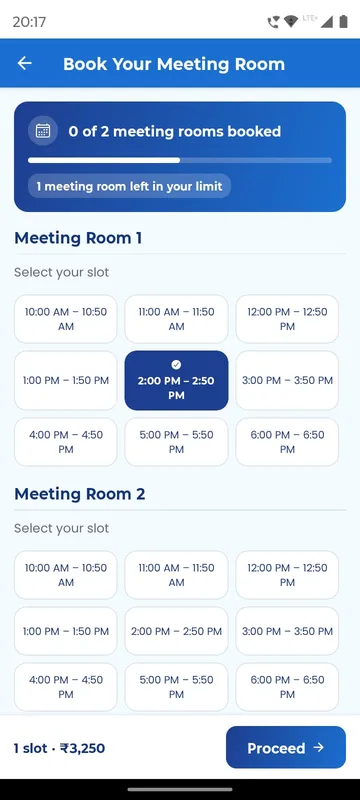
- Choose a room and slots. Book Your Meeting Room shows a grid; booked slots are greyed, scarce ones say 2 left.
- Enter billing details. State is required for GST; company, GSTIN, address and PIN are optional.
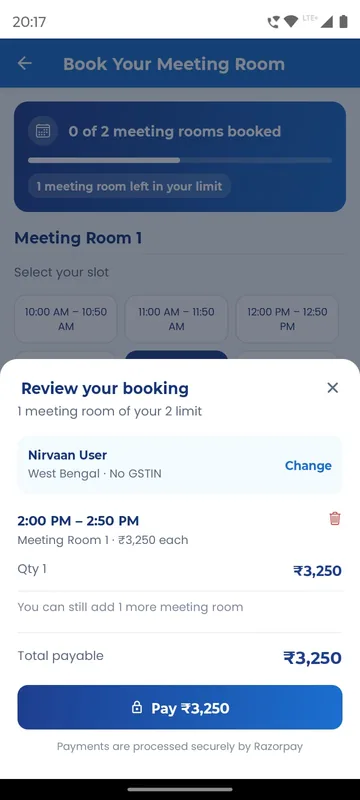
- Review and pay. Total payable, then a sample checkout.
- Hit the limit. Booking Confirmed! appears, and a further booking is refused at the maximum.
What happens on each screen
This is a written walkthrough, not an interactive demo: there is nothing to tap on this page. It describes how the screens behave in the product, using sample data.
Sample data: three fictional meeting rooms with eight slots each, prices, GST rates by state and ten sample bookings. No payment is taken; the checkout is badged Sample payment, Razorpay in production. Start on the attendee phone's home screen and tap Book Your Meeting Room. A list of rooms appears; choose one. The next screen, Select your slot, is a grid. Booked slots are greyed out, and any slot with limited capacity says 2 left. Choose one or more slots and tap Continue. The billing screen asks for State first, and notes that it decides the GST on your invoice. Company name, GSTIN, address and PIN code are optional, because an individual buyer should not need a GSTIN to book. Continue to Review your booking, which lists each slot, the taxable amount, GST and the Total payable. Tap Pay and the gateway sheet opens, clearly labelled as sample. Confirm, and the screen reads Booking Confirmed! with a preview of the confirmation email. Look at the room grid again: the slots you took are now greyed out, and the sample crowd keeps booking, so the grid changes while you watch. The organiser has set a maximum number of bookings per guest. Keep booking and you reach it, and the app refuses with a clear message instead of failing silently. One edge case is shown on purpose: if the payment is captured but the booking is not confirmed, the screen shows an exception card telling the guest to contact the help desk, so there is a visible path when a gateway callback fails. The organiser pane has the inventory grid, per-guest limits, refunds and an export. Next step: read the meeting-room and slot booking feature page, and ask about selling meeting rooms or workshop seats at your conference.
Questions people ask
Is the payment real in the demo?
No. It is badged Sample payment. In production the checkout uses Razorpay, and gateway fees are stated on actuals.
Why does it ask for a State?
The State decides the GST applied on the invoice. GSTIN and company details are optional so individual buyers are not blocked.
Can I limit bookings per guest?
Yes. The organiser sets a maximum, and the demo shows the refusal message when a guest reaches it.
What if payment succeeds but the booking fails?
The demo shows an exception card telling the guest to contact the help desk, so a failed gateway callback has a visible path.
Seen enough to try it?
We will load a demo with your agenda and your groups, so your team can test it on their own phones.