
Walkthrough
Walkthrough: Audience-wide bingo with a venue-screen reveal
A read-only walkthrough, not an interactive demo. In the product: tap squares as your day happens; when the scanner at the gate marks you present, that square ticks itself, and a full card shouts BINGO. Organiser-verified squares stop people ticking what they did not do. The demo uses card sets for a conference, a workshop and a wedding.
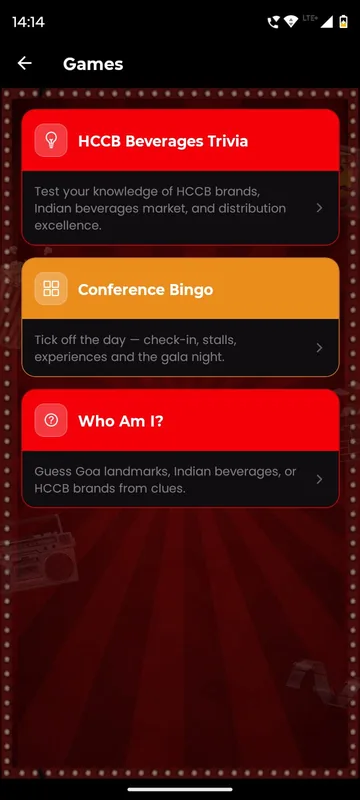
A walkthrough, not a live demo. Nothing on this page is interactive. Sample card sets and sample players; nothing is stored. Verified squares link to the attendance pane in the demo only. Prizes are handled by your team; the demo shows the winners list.
Step by step
- Read the card. A 5 by 5 card for the day: check-in, stalls, experiences, the gala night.
- Tick a square. Tap squares you have done; they show a pressed state.
- Let a scan tick one. Attendance pane scans you and the verified square completes itself.
- Reach BINGO. A line or full card fires BINGO and Play Again.
What happens on each screen
This is a written walkthrough, not an interactive demo: there is nothing to tap on this page. It describes how the screens behave in the product, using sample data.
Sample data: three card sets, for a conference, a workshop and a wedding, each with 25 squares, and a sample list of players. Nothing is stored. Start on the attendee phone, on Conference Bingo. The screen describes it as a way to tick off the day: check-in, stalls, experiences and the gala night. The card is a five by five grid of buttons, each with a short task, such as Check in at the registration desk, Visit three stalls, Ask a speaker a question or Dance at the gala. Tap a square you have done and it shows a pressed state with a tick. Some squares are different. They carry a small badge, Verified, which means the organiser has linked them to a real scan. In the pane beside the phone, a scanner marks the attendee present at the gate, and the Check-in square ticks itself without a tap. Visit a stall in the same way and the stall square completes. Verified squares are what stop the card becoming an honesty box, and the organiser pane shows the mapping from squares to attendance activities. Keep playing until a line is full, and the phone displays BINGO!, with a Play Again button. For a bigger moment, the venue-screen pane can show the winners as they appear. The organiser pane also lets you set the card content, choose which squares are verified and see a list of winners. Compare this to a printed paper card: it is cheaper to run, the winners list builds itself, and the data shows which activities people actually visited. The system does not hand out prizes; it is a game that feeds the same points and leaderboard as everything else. Next step: read the bingo, trivia and Who Am I feature page, then add bingo to your partner meet.
Questions people ask
Can people cheat by ticking squares?
Free squares can be ticked by tapping. Verified squares are linked to a scan, so they only tick when the organiser's attendance records them.
Who decides the card content?
The organiser. The pane shows the card content, which squares are verified, and the list of winners.
Can bingo feed the leaderboard?
Yes. A completed line or card can award points to the same leaderboard as polls and attendance.
Is there a wedding version?
Yes. The demo includes a wedding card set alongside the conference and workshop sets.
Seen enough to try it?
We will load a demo with your agenda and your groups, so your team can test it on their own phones.