
Walkthrough
Walkthrough: Switch features on and off for a sample occasion
A read-only walkthrough, not an interactive demo. In the product: switch a feature off in the admin panel and the tile on the attendee phone gets a lock; turn posting off for guests and the plus button disappears. The demo is a mock panel beside a live phone, with the three states a feature can take: on, off and not included.
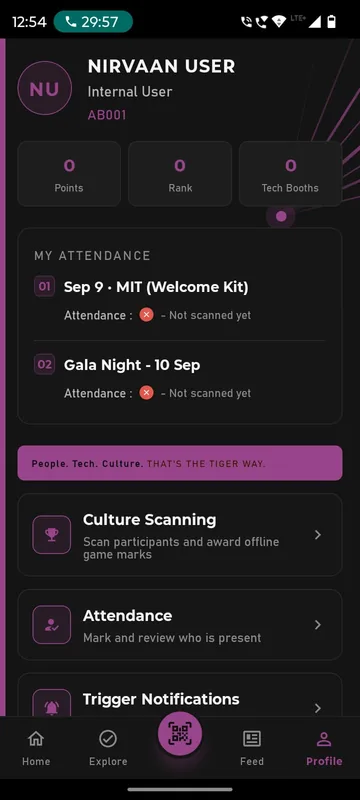
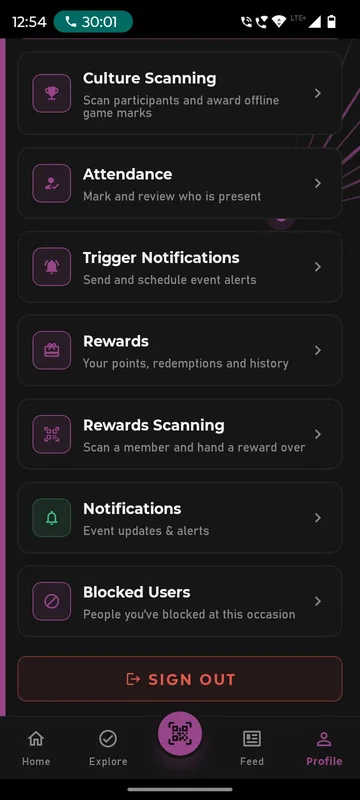
A walkthrough, not a live demo. Nothing on this page is interactive. A mock panel with a sample feature set; nothing is saved. Look and layout, Members and Reports are separate demos. Delivery timelines are patterns, not commitments.
Step by step
- Open the Features list. Each feature is On, Off or Not included.
- Turn one off. The matching tile on the phone shows a lock.
- Change a rule. Posting off for guests removes the plus button; downloads off hides save.
- Read the audit line. Each change is recorded with who and when.
What happens on each screen
This is a written walkthrough, not an interactive demo: there is nothing to tap on this page. It describes how the screens behave in the product, using sample data.
Sample data: a feature matrix and rules for a fictional two-day annual meet, and an attendee phone that mirrors every change. Nothing is saved. The demo has two panes: a mock admin panel on the left and the attendee phone on the right. The admin panel opens on the occasion overview and its main idea: an occasion is configured under three headings, Features, Rules and Look and layout. Start with Features. A list shows each module with a switch and one of three states: On, Off or Not included. Not included means the feature is not part of this occasion's package, which is different from Off. Turn Delegates off. On the phone, the Delegates tile gains a small lock, and tapping it explains that the feature is not available. The rest of the app is unchanged, because each feature is independent. Open Rules. Here you set behaviours: whether guests can post on the Timeline, whether photos can be downloaded, whether a whitelist controls who can sign in, whether polls are scoped to groups, and whether chat requires a ticket. Switch off posting for Guests and the plus button on the Timeline disappears from the phone. Managers keep it. Switch off downloads and the save button leaves the gallery. Every change writes a line to a history panel: who changed it and when, so a disputed setting can be traced. The demo does not rebuild every panel; Look and layout is a separate demo, and Members, Groups and Reports are linked from here as sections you can open in the real walkthrough. Configuration is a few days of work in a typical delivery, with content and launch following; that is a pattern, not a promise of a fixed date for your occasion. Next step: book a live admin-panel walkthrough and see the roles and permissions feature page.
Questions people ask
What is the difference between Off and Not included?
Off means the feature is part of the package but turned off. Not included means it is not part of this occasion's package.
Can I stop guests posting but let managers post?
Yes. The posting rule can be off for Guests while Managers can always post, and the demo shows the plus button disappearing for guests.
Is the panel real?
The demo is a mock panel for a sample occasion. The real admin panel has more sections, and a live walkthrough shows them.
Is every change recorded?
Yes. A history panel shows who changed a setting and when, which helps when a setting is questioned later.
Seen enough to try it?
We will load a demo with your agenda and your groups, so your team can test it on their own phones.