
Interactive demo
Try it: schedule announcements by group
Schedule an announcement in Trigger Notifications, choose Send To All or Select Group, then move the demo clock past the send time: the item moves from Upcoming to Triggered and lands on the attendee's Notification tab only if her group was picked. Validation, edit with Update and delete with Yes, Delete behave as in the app.
Partners’ breakfast
09:15Breakfast with the leadership team, Coral Room, 9:30 am.
Keynote in 10 minutes
09:50Please take your seats in the Grand Ballroom.
Town hall moved to Hall B
11:30The 11:45 am town hall for employees is now in Hall B.
Gala buses leave at 7 pm
18:15Buses leave from the main porch. Call +91 98xxx xxx00 if you need help.
Fig. 1 — Handset · organiser · Profile > Trigger Notifications
Registration desk is open
15 min agoCollect your kit at the lobby desk. Show your QR from Profile.
Fig. 2 — Handset · attendee in Employees · Notification tab
Control Room · organiser
Who receives what
| Time | Title | Audience | Status | Reaches Priya? |
|---|---|---|---|---|
| 08:45 | Registration desk is open | Send To All | Triggered | Yes |
| 09:15 | Partners’ breakfast | Partners | Upcoming | No — not in Employees |
| 09:50 | Keynote in 10 minutes | Send To All | Upcoming | Yes |
| 11:30 | Town hall moved to Hall B | Employees | Upcoming | Yes |
| 18:15 | Gala buses leave at 7 pm | Send To All | Upcoming | Yes |
Try: switch Priya to Partners before 09:15 and move the clock to 09:20. The breakfast note reaches her; as an Employee it would not.
Fig. 3 — Control Room · audience check
Trigger Notifications scheduler · organiser + attendee
Sample dataRuns in your browser with made-up data. Nothing you tap leaves this page.
No real push notification is sent; the attendee phone shows an in-app banner · Scheduling is limited to Day 1 times in this demo · The clock moves forward only; use Reset demo to start the day again
Accessibility: The form uses labelled fields and a fieldset for Select Group; Upcoming and Triggered are a tablist; validation errors use role=alert; triggered messages are announced.
Step by step
- Open Trigger Notifications. Organiser phone: Upcoming and Triggered tabs; five messages are scheduled for Day 1 of a fictional summit.
- Create a notification. + → Title, Message, Select Date and Time, then Send To All, or switch it off and Select Group → Create.
- Move the clock. Drag the demo clock past the send time; the message jumps from Upcoming to Triggered with its time.
- Check who received it. Priya's Notification tab shows it only if her group was targeted; the audience table says why.
- Edit or delete before it goes. Pencil → Update; bin → Yes, Delete. Triggered messages cannot be edited.
What happens on each screen
The demo is Day 1 of Horizon Summit 2026 and the clock starts at 09:00. On the left, Ananya's phone is open at Profile > Trigger Notifications with its two tabs, Upcoming and Triggered. In the middle is Priya's phone on the Notification tab. On the right is an audience table listing every message, its send time, who it is for, whether it has gone, and whether it reaches Priya. Above the panes are the demo clock and a switch for Priya's group, Employees or Partners.
One message has already gone: “Registration desk is open” was set for 08:45 to everyone, so it sits under Triggered and in Priya's Notification tab with how long ago it arrived. Four more wait under Upcoming: a Partners-only breakfast at 09:15, a keynote reminder to everyone at 09:50, an Employees-only room change at 11:30 and the gala bus timing at 18:15. Each card shows its title, message, time and audience, with a pencil to edit and a bin to delete.
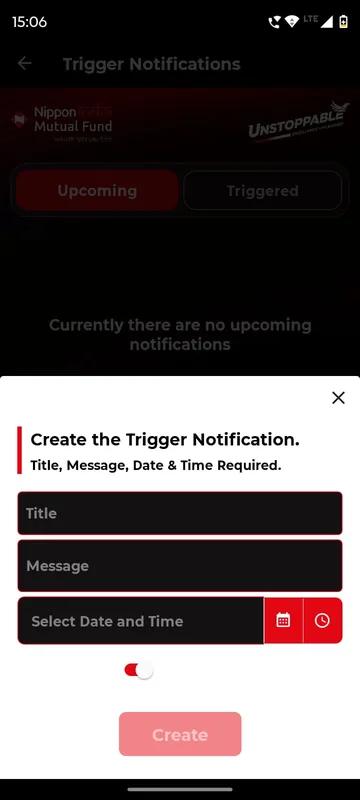
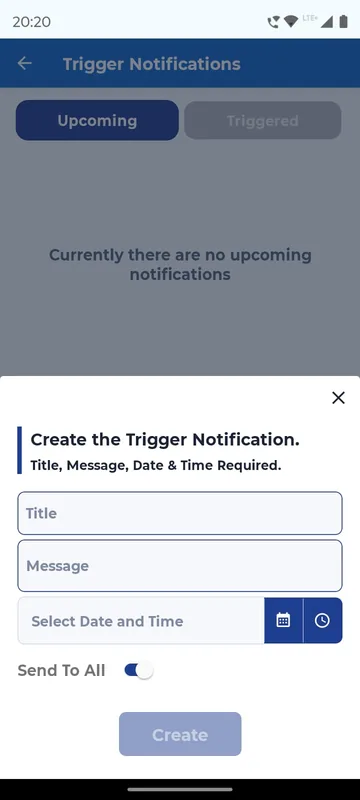
The + button opens the form. The labels and placeholders match the app: Title (“Notification title”), Message (“What should recipients see?”), Select Date and Time, and a Send To All switch. Switching Send To All off shows Select Group with Partners, Employees and Speakers. Pressing Create with anything missing shows the app's own validation line, “Title, Message and Date & Time are all required”; with Send To All off and no group ticked, it asks for at least one group. A saved message appears under Upcoming in time order. The pencil reopens it with an Update button; the bin asks for Yes, Delete before removing it.
The clock only moves forward, like a real day. Dragging it to 09:20 sends the breakfast message: it moves to Triggered and the organiser sees a toast. Whether Priya receives it depends on her group at that moment. As an Employee she does not, and the audience table says “No — not in Employees”. Reset, switch her to Partners and move the clock again, and her phone shows a banner and a new entry in Notification. At 09:50 the keynote reminder reaches her either way because it was sent to all. At 11:30 the room change reaches only Employees.
In the product, a triggered message arrives as a push notification and stays in the Notification tab, where links, phone numbers and email addresses are tappable. This demo shows the in-app banner and list; it does not send real push notifications.
Questions people ask
Who can trigger notifications?
Owners and Managers of the occasion, from Profile > Trigger Notifications on their phone, and admins from the admin panel. Attendees only receive them.
Can I send a notification to one group only?
Yes. Switch Send To All off and use Select Group to pick one or more groups, such as Partners or Speakers. Members outside those groups never receive it.
Can I change a notification after scheduling it?
While it is under Upcoming you can edit it and tap Update, or delete it and confirm with Yes, Delete. Once it moves to Triggered it has been sent.
Do attendees need notifications switched on?
Push banners need notification permission on the phone. Every triggered message also stays in the in-app Notification tab, so people who blocked pushes still find it.
Seen enough to try it?
We will load a demo with your agenda and your groups, so your team can test it on their own phones.