
Interactive demo
Try it: from hospitality desk to a guest's My Stay card
Watch a delegate's My Stay go from “To be updated by Admin” to a confirmed hotel, room, pickup and driver the moment the travel desk flips Publish in the Control Room. Change the hotel afterwards and the phone shows a Changed badge; update a flight from the phone and it lands in the ops change log. Fictional Jaipur conclave data.
Pending from the hospitality team.
Fig. 1 — Handset · delegate · My Stay
Control Room · organiser
Operations workspace · arrangements
Delegates with every critical field verified ÷ delegates needing arrangements
17%| Delegate | Group | Stay & pickup |
|---|---|---|
| Priya Nair | CXO delegates | pending |
| Rahul Verma | CXO delegates | provided |
| Sneha Kulkarni | CXO delegates | pending |
| Farhan Ali | Speakers | verified |
| Meera Pillai | CXO delegates | provided |
| Joseph D’Souza | Speakers | pending |
Priya Nair · arrangements
Nothing provided yet — edit a field or mark provided.
Pending → Confirmed on Priya’s My Stay, My Flights and My Journey.
Then change the hotel: the phone shows a Changed badge.
Change log
No guest updates yet. On the phone, open MY STAY → My Flights → Update.
Fig. 2 — Control Room · travel desk
My Stay: pending to confirmed · attendee + organiser
Sample dataRuns in your browser with made-up data. Nothing you tap leaves this page.
Six fictional delegates and two fictional hotels; Sociana does not hold hotel inventory · The voucher is a plain-text sample generated in your browser, not a PDF · PNR and arrival reconciliation are covered by a separate demo
Accessibility: Each card states its status in text (Pending, Confirmed, Changed); the operations sheet is a real table; publish is a labelled switch; changes are announced in a live region.
Step by step
- Start from Pending. Priya's MY STAY, My Flights and Accommodation all read Pending, with “To be updated by Admin” where details will go.
- Fill the arrangements. In the operations workspace, set hotel, Room No. and pickup for Priya; her row moves from pending to provided.
- Publish to the guest app. Flip Publish: the phone shows Confirmed, the Room No. in the welcome header, the driver and a Download File voucher.
- Change something late. Switch her hotel after publishing; the phone updates and the Accommodation card shows a Changed badge.
- Let the guest correct a detail. On the phone, My Flights → Update → Save; the edit appears in the ops change log.
What happens on each screen
The demo uses a fictional executive conclave in Jaipur. On the left is Priya's phone. On the right is the travel desk's operations workspace: a hospitality completeness figure, a sheet with one row per delegate and the arrangements form for Priya. Completeness is the share of delegates whose critical fields are all verified, out of everyone who needs arrangements; it starts low because most rows are still pending or provided.
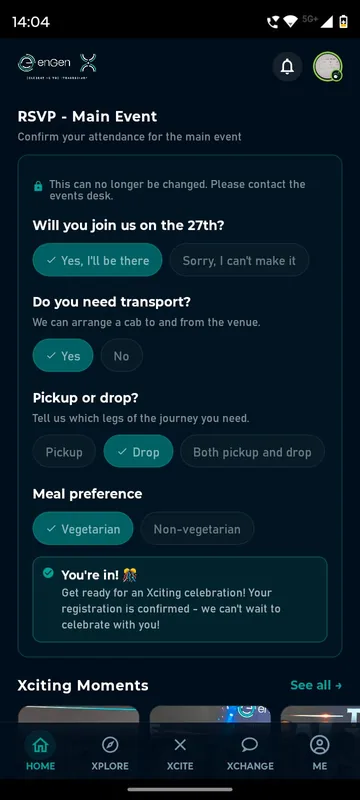
On the phone, Home shows three tiles, MY STAY, VIEW MY JOURNEY and Hospitality, and a card that says the arrangements are pending from the hospitality team. Opening MY STAY shows the My Flights & Accommodation screen: a My Flights card and an Accommodation card, both marked Pending, each with “To be updated by Admin”, and a Contact card with her registered phone and email, masked. VIEW MY JOURNEY says the journey appears once the travel desk confirms it.
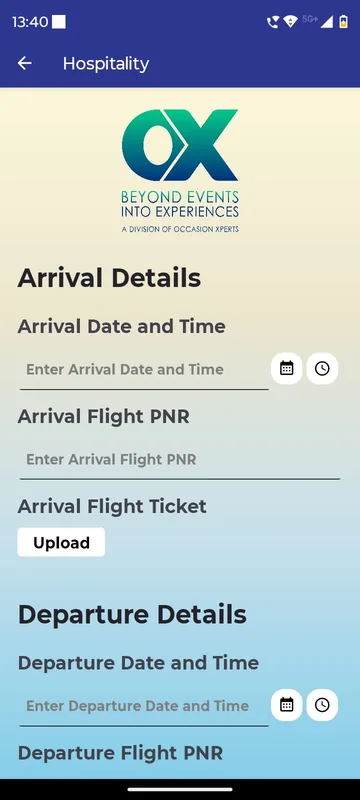
In the workspace, the travel desk picks a hotel, types a Room No. and a pickup line. The first edit moves Priya's row from pending to provided; Mark provided does the same without editing. The Publish to guest app switch stays disabled until something has been provided, because an empty arrangement should never be shown as confirmed. When it is flipped, the phone receives a toast, the welcome header gains Room No. 412, and both cards turn Confirmed with hotel, room, check-in and check-out, pickup, driver name and masked number. Download File saves a plain-text sample voucher generated in the browser. VIEW MY JOURNEY now shows Arrival Details (flight, landing time, pickup) and Return Details (flight, time and drop). Priya's row turns verified and the completeness figure rises.
While you watch, the sample desk keeps working through other delegates, moving rows from pending to provided to verified every few seconds, so completeness climbs on its own. Changing Priya's hotel after publishing updates her phone immediately and adds a Changed badge to the Accommodation card, which is the exception path guests most need to notice. Finally, Priya can open My Flights, tap Update, edit her arrival flight and Save; the change appears in the workspace change log with the old and new values. Unpublishing returns everything to Pending. Reset demo restores the fixture.
Questions people ask
Does Sociana book the hotels and flights?
No. The travel desk or agency books them; Sociana is where those arrangements are collected, checked and published back to each guest as My Stay, My Flights and My Journey, so guests stop asking the desk for their room number.
What does pending, provided and verified mean?
Pending means nothing has been entered. Provided means details exist but have not been checked. Verified means the desk has confirmed them; only then are they shown to the guest as Confirmed.
What happens when a hotel changes at the last minute?
The desk edits the arrangement and the guest's phone updates straight away with a Changed marker, so the change is visible without a broadcast message to everyone.
Can guests correct their own details?
Where the organiser allows it, guests tap Update on a card, edit and Save. The edit goes to the operations workspace with the old and new values so the desk can re-verify.
Seen enough to try it?
We will load a demo with your agenda and your groups, so your team can test it on their own phones.