
Interactive demo
Try it: scan, rules, points and reversal
Scan sample QR cards into Day 1 Entry, Gala Dinner or Return Bus and see exactly why each scan passes or fails: “Attendance marked successfully!”, a duplicate with the first scan's time, a closed time window, a group that is not eligible, or “Invalid QR Code”. Move the demo clock, flip the rules and undo a mark to reverse points.
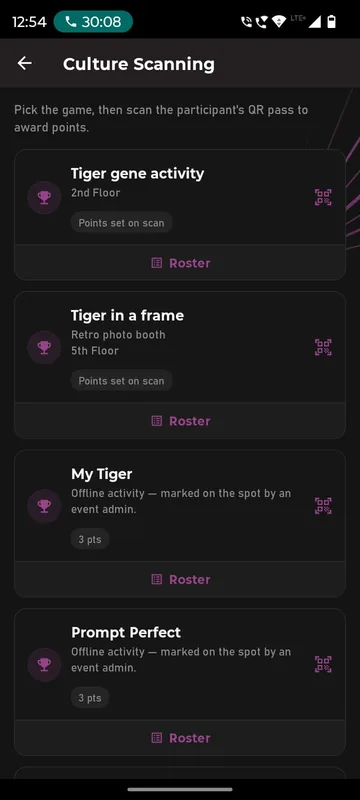
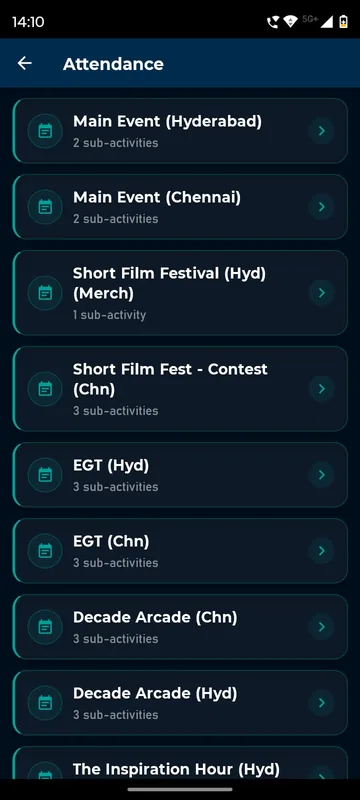
Fig. 1 — Handset · organiser · Attendance
Control Room · organiser
Rules · Day 1 Entry
A second scan is refused with the first scan's time.
Scans outside the window are refused.
Sample QR cards — tap one to show it to the scanner
Scan log
| Time | Attendee | Activity | Result | Scanner | Action |
|---|---|---|---|---|---|
| No scans yet. Try Priya twice, then Arjun at the Gala Dinner. | |||||
Fig. 2 — Control Room · rules, sample QR cards, scan log
Priya Nair · Partners
Turn up your screen brightness and show this code at the desk.
Attended: nothing yet
Fig. 3 — Handset · attendee · Profile > My QR Code
QR attendance scanner with rules · organiser + attendee
Sample dataRuns in your browser with made-up data. Nothing you tap leaves this page.
The camera is sample: sample QR cards are illustrations and are scanned by tapping them · Four sample members of a 48-person roster; ticket and step-order rules are described in the FAQ, not sample · Points and marks reset when you leave the page
Accessibility: Scan outcomes are announced in a live region and shown as text with an icon; rules are labelled switches and selects; the full flow works by keyboard, including the manual Add User path.
Step by step
- Open an activity. Organiser phone: Attendance lists Day 1 Entry, Gala Dinner and Return Bus with their window, eligible group and present count.
- Scan a sample QR. Tap a QR card in the Control Room; the viewfinder reads it and shows the member card with Name, Mobile, Email, Designation, City, Employee Code and Document Status.
- Break a rule on purpose. Scan Priya twice, scan Arjun at the Partners-only Gala Dinner, or drag the clock past 10:30 to see each refusal and its reason.
- Add by email or phone. Add User → Enter Email / Phone Number → Add User; the same rules apply as for a QR scan.
- Read the scan log and undo. Every attempt is logged with time, activity, result and scanner; Undo removes a mark and reverses the 20 attendance points.
What happens on each screen
Three panes sit side by side. On the left is Ananya's organiser phone open at Attendance. In the middle is the Control Room with the rules for the selected activity, five sample QR cards and the scan log. On the right is Priya's own phone showing My QR Code, her points and the activities she has attended. Above them, a demo clock starts at 09:40 on Day 1 of Horizon Summit 2026.
Attendance lists three categories. Day 1 Entry accepts scans from 09:00 to 10:30 for all groups; Gala Dinner runs 19:30 to 22:00 for Partners only; Return Bus runs 16:30 to 18:00. Each row shows the present count out of 48, because 31 people were already marked at the entry before the demo began. Opening Day 1 Entry shows the Users list with All, Present and Absent counts and a search box for name, email or phone. The QR scan icon opens the viewfinder; the Add User icon opens the manual form.
Tapping Priya's card in the Control Room shows her QR to the scanner. After a short read, the phone shows “Attendance marked successfully!” with her Name, masked Mobile and Email, Designation, City, Employee Code and Document Status, and two buttons: Scan Again and Go Back. Her own phone gets a +20 points toast and lists Day 1 Entry under Attended. Scanning her again is refused with “Already marked at 09:40” and the name of the scanner, because Block duplicate scans is on. Turning that rule off lets a second scan through, which is how repeatable activities such as meal counters behave.
Switching the activity to Gala Dinner and scanning Arjun, who is in Employees, gives “Not eligible: Partners only”. Scanning Priya there at 09:40 gives “Scanning window not open yet” with the 19:30–22:00 window; dragging the clock to 19:45 lets her in. Dragging past 10:30 on Day 1 Entry gives “Scanning window closed”. The Wi-Fi poster card is not a member code, so the scanner shows “Invalid QR Code” and suggests asking the attendee to open Profile > My QR Code and try again, which is the tip the app gives.
The manual path accepts an email, a phone number or an employee code, for example arjun.menon@example.com or HS-0175, and applies the same rules. Every attempt, accepted or refused, lands in the scan log with time, attendee, activity, result and scanner. Undo on an accepted row removes the mark, reverses the points on Priya's phone and keeps the row in the log marked as undone, so the record of what happened survives the correction. This demo simulates the camera; no camera or decoding library is used on this page.
Questions people ask
Can I use my webcam in this demo?
Not yet. This version simulates the camera so it works everywhere, including without permission prompts. The planned scanner decodes on the device with the browser's barcode detector or a small decoding library, and no frames leave the browser.
Which attendance rules can an organiser set?
Per activity: a time window, eligible groups, whether a ticket is required, whether repeat scans are allowed and how many, and the order of steps (entry before dinner). The demo simulates duplicates, time windows and group eligibility.
What does the scanner record for each attempt?
The attendee, activity, time, result and who scanned, for accepted and refused attempts alike. That log is what reconciles head counts with catering, transport and points afterwards.
What happens to points when a mark is undone?
The attendance points are reversed on the attendee's balance and the log keeps the original row marked as undone, so corrections stay auditable.
Seen enough to try it?
We will load a demo with your agenda and your groups, so your team can test it on their own phones.