
Interactive demo
Try it: an agenda with Live and Up Next badges
Drag a demo clock across a two-day agenda and watch the gold Live badge walk down the day while Up Next stays one session ahead. A NOW LIVE banner pins the current session, the tab can be renamed Show Flow or Programme, the organiser can lock the programme or push a session back 15 minutes, and session details carry a feedback link.
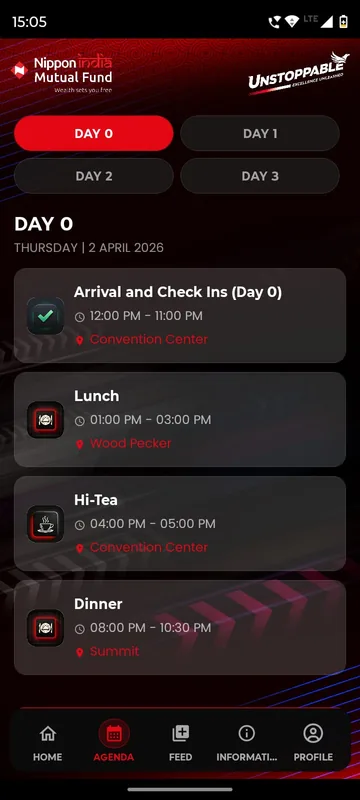
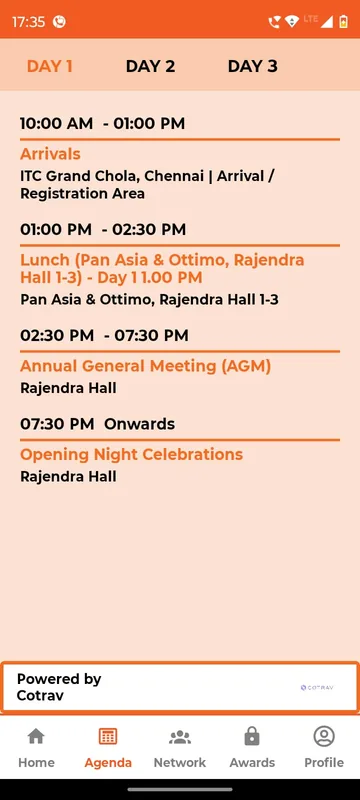
Fig. 1 — Handset · attendee · Agenda
Control Room · organiser
Agenda · Look & layout
Unpublished, the tab shows a padlock.
Right now
Day 1 · 09:50 Live: Opening keynote: the year ahead · Up Next: Product roadmap 2027
Fig. 2 — Control Room · organiser
Agenda with Live and Up Next · attendee + organiser
Sample dataRuns in your browser with made-up data. Nothing you tap leaves this page.
The image-based agenda variant and swipe gestures are not sample · Session feedback is a one-tap rating here; real feedback forms have several questions
Accessibility: Badges are text (Live, Up Next, Done), not colour alone; the clock is a labelled range with a readable value; day tabs are a tablist; live and next changes are announced.
Step by step
- Read the day. Agenda tab: day tabs, session cards with time, title and venue, a Live badge on the current one and Up Next on the one after.
- Scrub the clock. Drag from Day 1 morning to Day 2; badges move and the day tab follows the clock across midnight.
- Open a session. Details show time, venue and speaker, and a Session Feedback link that opens once the session starts.
- Rename the tab. Control Room: switch the label to Show Flow or Programme and the tab, Home card and header follow.
- Lock or shift. Unpublish to show the padlock state, or push one session back 15 minutes and watch the badges recalculate.
What happens on each screen
The phone shows Priya's Agenda tab for Horizon Summit 2026: two day tabs and the sessions of the selected day, each with its start time, title and venue. Above the panes is a demo clock that runs from 08:00 on Day 1 to 16:00 on Day 2, starting at Day 1, 09:50. At that time the opening keynote is on, so its card carries the gold Live badge and the product roadmap session after it carries Up Next in red; sessions that have finished show Done. A green NOW LIVE banner with a pulsing dot sits above the list and opens the live session when tapped.
Dragging the clock to 10:20 moves Live to the roadmap session and Up Next to the tea break. At 15:30 nothing is on, so no card is Live, the banner disappears and Up Next marks the gala dinner at 19:30, which is styled as an onwards session because it has no fixed end for guests. Dragging past midnight switches the day tab to Day 2 by itself, where beach yoga, customer stories, an open Q&A, lunch, the closing and departures follow the same rules. The quick-jump buttons go straight to useful moments. Changes are announced to screen readers as “Live: … Up next: …”.
Home shows a preview: the next sessions with the live one in gold and the next in red, and a Full Schedule › link to the full tab. Tapping any session opens its details: day and time in guest format such as 9:30 am, venue and speaker. The Session Feedback card stays closed until the session has started; afterwards it offers a one-to-five rating and thanks the guest.
The Control Room holds three organiser settings. The tab label switch renames the tab, the Home card and the page header to Show Flow or Programme, which is how different occasions label the same screen. Published, when turned off, puts a padlock on the tab and shows “The programme has not been published yet” in its place, the state guests see before an organiser opens the agenda. Running late? picks any session and pushes it back 15 minutes; the badges recalculate immediately, so a delayed keynote stays Live past its printed end time. A summary line in the Control Room always states the clock, the live session and the next one. Reset demo restores the original programme.
Questions people ask
How does the app know which session is live?
From the session start and end times in the agenda and the occasion's time zone. When a session runs late, the organiser edits its time and the Live and Up Next badges move for everyone.
Can the agenda tab be called something else?
Yes. Occasions have used Agenda, Show Flow, Programme and My Journey for the same screen. The label is part of the app's Look & layout, not a separate feature.
Can we hide the agenda until it is final?
Yes. Until it is published the tab shows a padlock and a short message, and the Home preview stays hidden, so guests never see a draft.
Does the agenda work for multi-day occasions?
Yes. Each day gets a tab; up to four fit on screen and more scroll. Badges follow the clock across days.
Seen enough to try it?
We will load a demo with your agenda and your groups, so your team can test it on their own phones.