
Interactive demo
Try it: scan a visitor, capture a consented lead
Work a stall at a fictional wedding-industry expo: Scan a Visitor, add a one-line note, see the lead in the Scan Log and download every lead as a real CSV file. The Scan summary ticks as sample visitors pass the stall, a second scan of the same visitor updates the existing lead, and a visitor who has not shared contact details stays name-and-company only.
Scan summary
Stall Chats, Members and Edit Stall are in the full app; this demo covers scanning and leads.
Fig. 1 — Handset · exhibitor · My Stall
Control Room · organiser
Visitors at Stall B-14
Tap a card to show the visitor’s QR to Rohan’s phone. Scan Priya twice to see the duplicate handling.
Leads — CSV preview (2)
| name | company | category | designation | city | scanned at | note | consent |
|---|---|---|---|---|---|---|---|
| Anil Gowda | Gowda Tent House | Tent & structures | Owner | Tumakuru | 10:12 IST | Wants mandap quote for Jan | yes |
| Ritu Saxena | Saxena Invites | Invitations | Designer | Bengaluru | 10:31 IST | — | yes |
The file is built in your browser from the sample data above; nothing is uploaded.
Fig. 2 — Control Room · sample visitor QR codes and the export
Exhibitor My Stall: scan, note, export · exhibitor + attendee
Sample dataRuns in your browser with made-up data. Nothing you tap leaves this page.
Visitor QR cards are tapped, not scanned with a camera · Stall Chats, Members and Edit Stall are named but not sample · The CSV contains fictional sample rows only
Accessibility: The Scan Log is a list and the CSV preview is a table with column headers; lead status (New lead, Already a lead) is text; Save and export confirmations are announced.
Step by step
- Open My Stall. The Scan summary shows Stall scans, Unique visitors, Leads captured and Unique leads for Stall B-14.
- Scan a Visitor. Tap a visitor's QR card; the lead card shows company, category, designation, city and whether contact details were shared.
- Add a note and save. Type one line (“Décor package for a Dec wedding; follow up Monday”) and Save lead; it appears in the Scan Log with the time.
- Scan the same visitor again. The card says Already a lead and the note is updated on the same lead instead of creating a duplicate.
- Export leads (CSV). Download a real CSV built in the browser: name, company, category, designation, city, scanned at, note, consent.
What happens on each screen
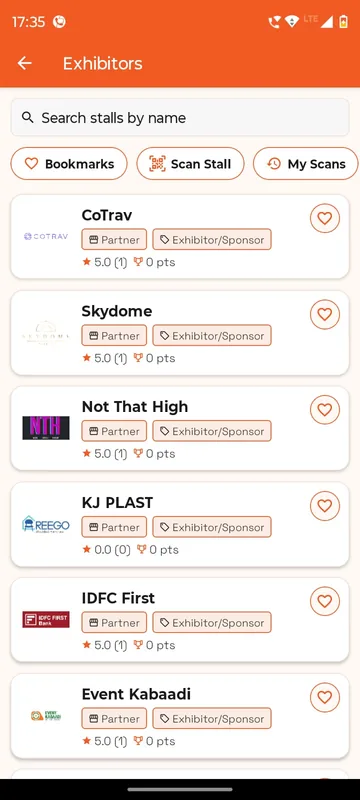
Rohan works Stall B-14, Marigold Décor Studio, at Expo Connect 4.0, a fictional three-day wedding-industry exhibition in Bengaluru. His phone opens at My Stall, the screen only stall staff see. At the top is the Scan summary: Stall scans, Unique visitors, Leads captured and Unique leads. Two leads already exist from the morning, a tent-house owner and an invitation designer, so the numbers do not start at zero. Below are three actions: Scan a Visitor, Scan Log and Export leads (CSV). The app also has Stall Chats, Members and Edit Stall; the demo names them but covers scanning and leads.
While the page is open, sample visitors scan the stall's own QR on their way past. Every few seconds Stall scans goes up by one and Unique visitors by one on every second scan, and each pass is written to the Scan Log as a stall scan with the time. These are footfall, not leads; a lead is someone Rohan scans on purpose.
To capture one, Rohan taps Scan a Visitor and the viewfinder waits. In the Control Room pane, four visitor cards show sample QR codes: Priya, a wedding planner from Pune; Sana, a photographer; Karthik from a banquet venue; and Neha, a caterer. Tapping Priya's card is the same as Priya holding up the QR from her Profile. The phone shows the lead card: company, category, designation, city and contact, marked as shared because she agreed to share contact details at registration. Karthik did not, so his card says the contact is not shared and his export row says so too. Rohan types a note and taps Save lead. A toast confirms it, Leads captured and Unique leads rise, and the lead appears in the Scan Log and in the CSV preview on the right.
Scanning Priya a second time does not create a second lead. The card is labelled Already a lead, the existing note is pre-filled, and the button reads Update note. Leads captured counts the event; Unique leads stays the same. That difference is the one exhibitors care about when they compare stalls after the show.
Export leads (CSV), on the phone or as Download leads CSV in the Control Room, builds a real file in the browser from the rows shown, with a header row and the consent column, and saves it to your downloads. Nothing is uploaded. Reset demo puts the stall back to its morning state.
Questions people ask
Who can see My Stall?
Only people the organiser has added as staff of a stall. Visitors and guests do not get the tile; stall leads can add members by email or mobile number and make someone a manager.
How is consent handled for exhibitor leads?
A visitor's contact details travel with the lead only if the visitor agreed to share them. Otherwise the exhibitor gets the name, company and their own note, and the export says the contact was not shared.
Is the CSV a real file?
Yes. The demo builds it in your browser from the rows on screen and saves it to your downloads. The data is fictional and nothing leaves the page.
Can the organiser compare stalls after the show?
Yes. Stall scans, unique visitors and leads per stall roll up into the organiser's reports, which is how exhibitors and the show team agree on footfall numbers.
Seen enough to try it?
We will load a demo with your agenda and your groups, so your team can test it on their own phones.