
Customer story · Multi-occasion app
Nirvaan: Install once, join any occasion by code or QR, take attendance at the door
Nirvaan is the lightest of the multi-occasion apps we run on Sociana. A person installs it once, signs in with a phone or email code, sees every occasion they belong to as a card, joins new ones by code or QR and reads all their updates in one inbox. Admins mark attendance at the door by scanning a guest's QR, or by typing an email or phone when there is no QR to scan.
The occasion
Nirvaan is Sociana’s own multi-occasion app, built for people who go to many occasions: conferences, award nights, meets. Install it once, sign in with a code, and every occasion you are invited to appears as a card, each with its own look.
What it had to do
Nirvaan carries occasions for several organisers, and a guest who attends more than one shouldn’t need a new app each time. The job was deliberately small:
- One install and one login for every occasion, with no password to forget.
- Joining without paperwork. A code or a QR on a poster, and the guest is in.
- One place for announcements, whichever occasion sent them.
- Attendance at the door that works even when a guest arrives without a phone or a QR.
- A distinct look per occasion, without building a separate app.
Everything else was left out of the way. The app has three tabs.
What we built
Sign-in without a password
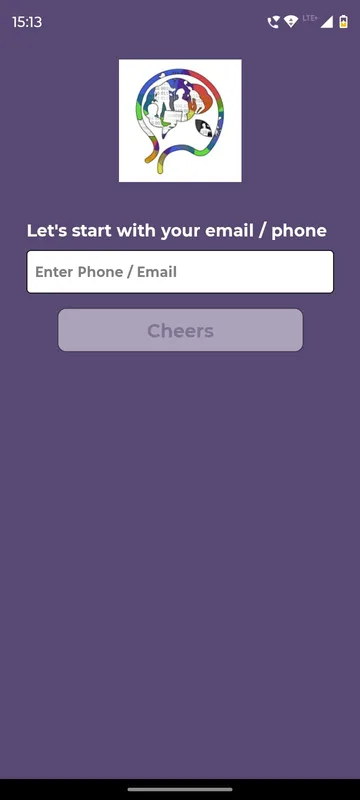
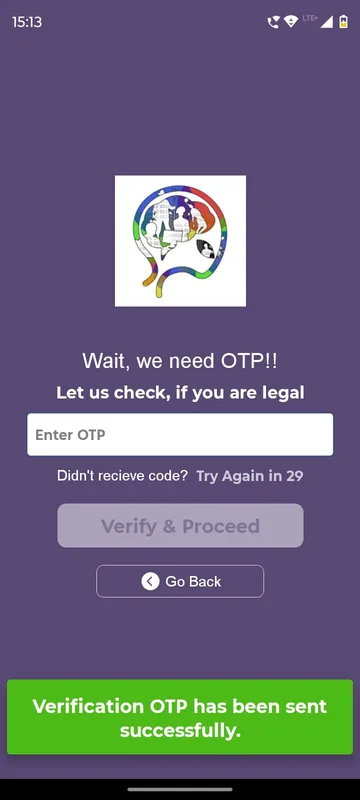
After the splash and a single Enter button, the guest types a mobile number or email and taps Cheers. A one-time code arrives, and Verify & Proceed lets them in. If the code doesn’t come, Try Again opens after 30 seconds, and Go Back fixes a mistyped number. First-timers add their name and city and, if they like, a photo. The app then remembers them until they log out.
Explore occasions
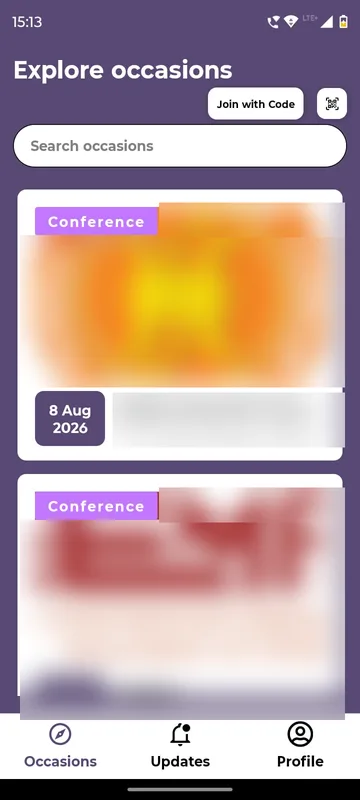
The first tab, Occasions, lists everything the person belongs to. Each card shows a cover picture, start date, name, venue and type (conference, wedding, party and so on). A search box filters the list as you type, and pulling down refreshes it.
Join by code or by QR
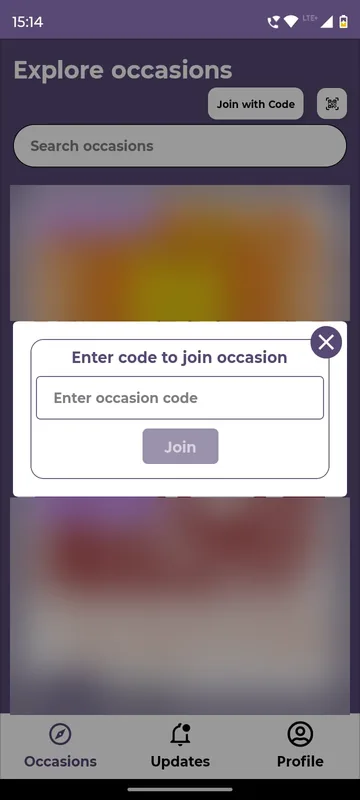
Join with Code takes the organiser’s code. The small QR icon beside it opens the camera, and pointing it at an occasion poster joins automatically. A code from anywhere else reads “Invalid QR Code”, so guests aren’t left guessing.
Every occasion gets its own home screen
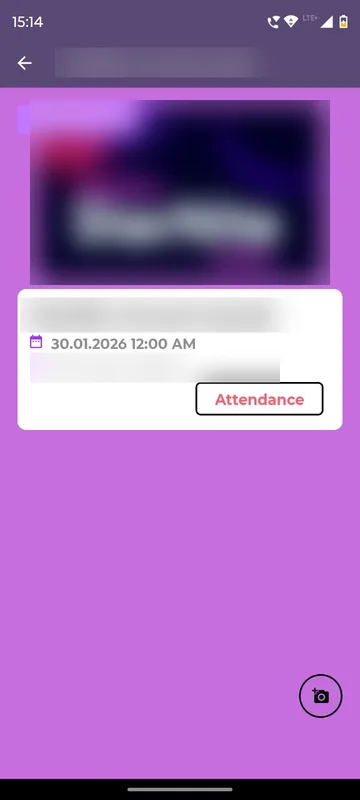
Tapping a card opens that occasion’s own home screen. The organiser chooses its colours and which tiles appear, so a conference and an awards night can look nothing alike inside the same app. The back arrow returns to the list.
One inbox for every occasion
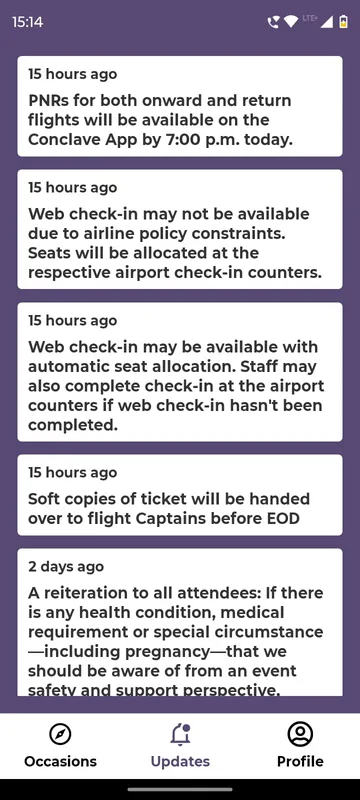
The Updates tab gathers announcements from every occasion the person has joined, newest first, each stamped with when it was sent. The same messages arrive as phone notifications. Nobody has to open each occasion in turn to find an announcement.
Attendance at the door
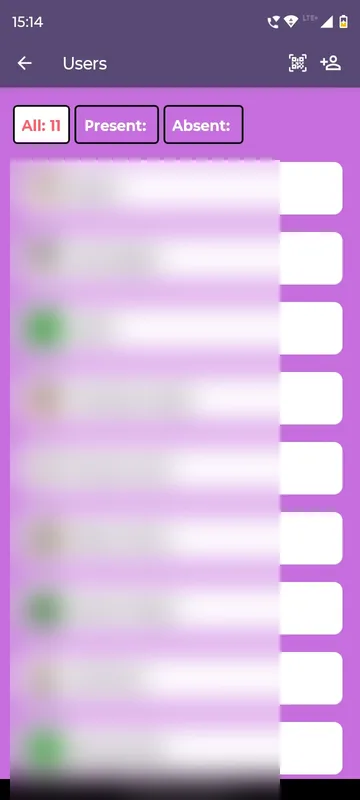
Only occasion admins (Owners and Managers) see the Attendance tile, and the organiser can rename it. Inside are categories, one per day, session or activity. Each category opens a guest list with All, Present and Absent filters.
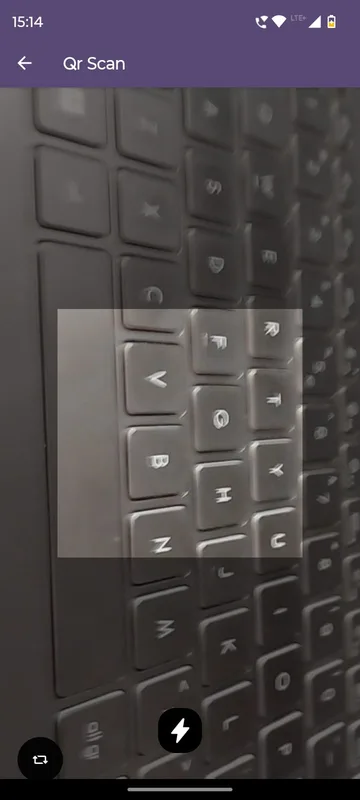
The scan icon opens the camera. One scan of a guest’s QR marks them present and drops the admin back on the list, ready for the next person. For a guest with no QR, the add-person icon takes an email or phone number and Add User marks them present. The guide’s advice to admins is simply to tap Present after a scan and watch the count go up.
Profile and the small things
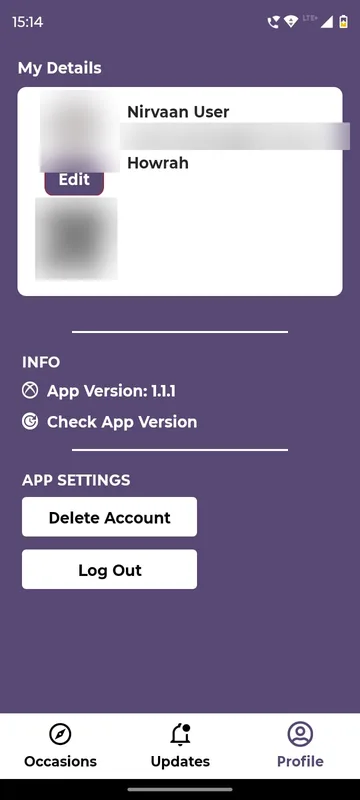
Profile holds the guest’s details and personal QR, Help (call or email support), Rate Nirvaan App, Share Download Link for WhatsApp, SMS or email, and a version check that prompts an update when one is out. Delete Account asks for a reason and completes within 12 to 48 hours, with 12 hours to change your mind. A lost connection shows a plain “You are offline!” screen, and the app carries on when the signal returns.
How it ran
Nirvaan runs as an ongoing app, not a one-off. It has carried a conference in Kolkata, an industry association’s conference and an annual awards evening with attendance by day, and its inbox has held travel notices for another occasion: flight PNRs, web check-in advice and tickets handed to flight captains. On the organiser side, members are added to an occasion in the Sociana admin panel by uploading a CSV or pasting emails and mobile numbers. The occasion’s code and QR are then shared with guests. Attendance categories are set up before the day so admins only have to scan.
Outcomes
The model works: several organisations’ occasions in one install, each with its own look, and attendance taken at the door from a phone.
What we would do again
- Keep it small. Three tabs and one inbox are enough for a lot of occasions. Modules can be added when an organiser asks.
- Always offer a manual path at the door. Email or phone entry covers guests who arrive without their QR.
- One inbox, not one per event. Guests find announcements without hunting through each occasion.
- Let each occasion look like itself. Shared plumbing, separate colours and tiles.
What we built
Modules switched on for this app
Related stories
More events on Sociana
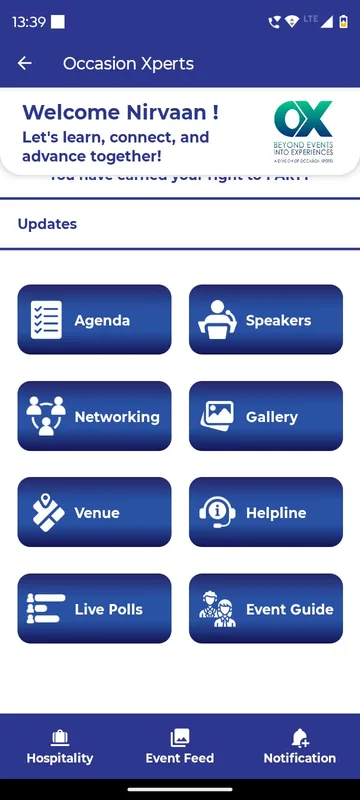
Occasion Xperts
Occasion Xperts
One branded agency app for every wedding, conference and offsite it runs, each occasion joined by code or QR.
Read the story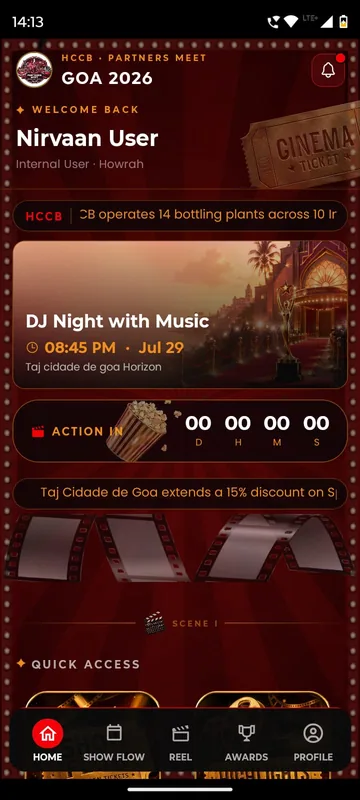
HCCB Partners Meet 2026
Hindustan Coca-Cola Beverages
A two-day partners meet built like a film premiere, with travel per guest, awards, games and partner-only content.
Read the story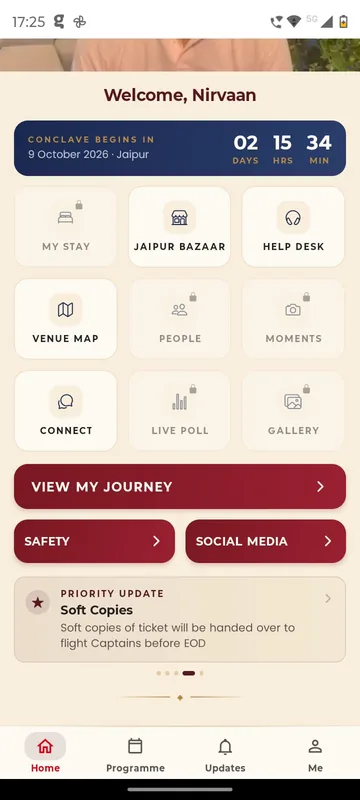
GCOO Conclave 2026
GCOO Conclave
Senior delegates across two Jaipur hotels found their stay, journey and help desk first, before the agenda.
Read the storyPlanning something similar?
Tell us about your multi-occasion app. We will show you the closest apps we have built and how yours would look.